



咋想的(
想必你也曾看过使用CF-R2搭建随机图api吧
而实际使用下来会出现以下问题:
- 容量有限?
- CF慢?
- 10w请求数太少?
突然我想了想,欸!github仓库好像没有容量限制!
欸!最近的EdgeOne有免费计划!
原先想直接使用github page来直接搭建api。最终发现github page好像不执行js代码。嘶那该咋办呢?
某天,在看EdgeOne的数据时发现了边缘函数。可以执行js!
在我不断的超那超这,终于整好了(
部署教程!
准备工作:
- 整一个有免费套餐的EdgeOne账号
- 搞一个github账号
- 搞到一个域名和一堆瑟瑟图片(
第一步:
- github创建一个仓库
- 创建一个名为
jpg的文件夹和index.htmlnum.json - 将所有图片名称从
1开始命名,并且所有格式改为png(这一步的批量命名可以找ai给一个bat代码。而转换格式也是一样,但是这里推荐使用python。)
py转换
import os
import random
import string
from PIL import Image

def random_string(length=24):
    """生成指定长度的随机字符串,包含数字和字母"""
    characters = string.ascii_letters + string.digits
    return ''.join(random.choice(characters) for _ in range(length))

def convert_images_to_png(directory):
    """将指定目录下的所有图片文件转换为PNG格式,并删除原文件"""
    supported_formats = ('.jpg', '.jpeg', '.bmp', '.gif', '.tiff', '.webp')
    for filename in os.listdir(directory):
        if filename.lower().endswith(supported_formats):
            input_path = os.path.join(directory, filename)
            output_path = os.path.join(directory, os.path.splitext(filename)[0] + '.png')
            try:
                with Image.open(input_path) as img:
                    img.save(output_path, 'PNG')
                os.remove(input_path)  # 删除原文件
                print(f"Converted and deleted: {filename}")
            except Exception as e:
                print(f"Failed to convert {filename}: {e}")

def rename_files_with_random_names(directory):
    """将指定目录下的所有PNG文件用随机数字字母重命名"""
    for filename in os.listdir(directory):
        if filename.lower().endswith('.png'):
            random_name = random_string() + '.png'
            old_path = os.path.join(directory, filename)
            new_path = os.path.join(directory, random_name)
            os.rename(old_path, new_path)
            print(f"Renamed {filename} to {random_name}")

def rename_files_sequentially(directory):
    """将指定目录下的所有PNG文件按1.2.3到n的顺序重命名"""
    png_files = [f for f in os.listdir(directory) if f.lower().endswith('.png')]
    png_files.sort()  # 按文件名排序
    for index, filename in enumerate(png_files, start=1):
        new_name = f"{index}.png"
        old_path = os.path.join(directory, filename)
        new_path = os.path.join(directory, new_name)
        os.rename(old_path, new_path)
        print(f"Renamed {filename} to {new_name}")

if __name__ == "__main__":
    current_directory = os.getcwd()  # 获取当前目录
    print("Converting images to PNG...")
    convert_images_to_png(current_directory)
    print("Renaming PNG files with random names...")
    rename_files_with_random_names(current_directory)
    print("Renaming PNG files sequentially...")
    rename_files_sequentially(current_directory)
print("All operations completed.")index.html写入以下内容
<!DOCTYPE html>
<html>
<head>
    <title>Random Image</title>
</head>
<body>
    <script>
        // 生成1到x之间的随机数,这里818改为你命名到的图片名称数值
        const randomNumber = Math.floor(Math.random() * 818) + 1;
        // 跳转到随机图片
        window.location.href = `/jpg/${randomNumber}.png`;
    </script>
</body>
</html>num.json写入以下内容
{
    "num":818
}其中818为照片数量
示例仓库:https://github.com/boringstudent/jpg
-
将准备好的图片一股脑上传到所建仓库的jpg文件夹中
-
打开仓库的设置(settings) -> 页面(page) -> 生成和部署(Build and deployment)下面的分支(Branch)改为主要(main)
然后点击保存
如果需要绑定域名等则在自定义域(Custom domain)中进行修改
- 将github.io的资源绑定到eo cdn
第一步:打开eo的域名管理点击添加域名
加速域名填写绑定的域名
源站配置为 你的github用户名.github.io
第二步:打开你域名提供商的管理面板,添加cname解析
主机记录为你要所绑定的域名
记录值为eo在部署cdn给你的 CNAME


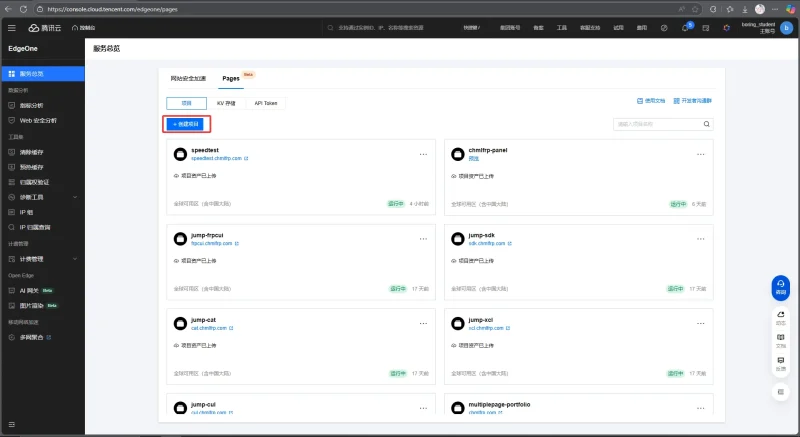
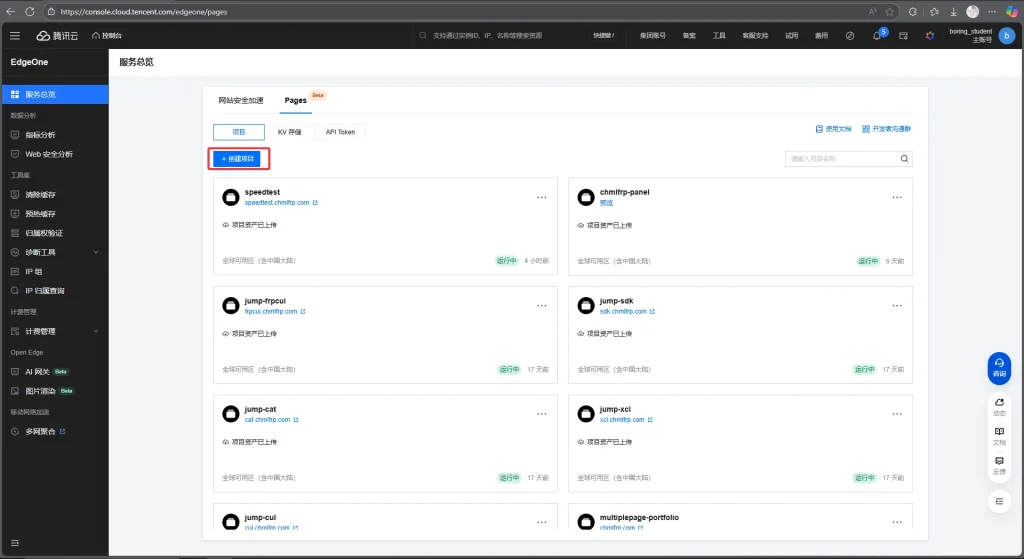
- 打开eo的
高级能力->边缘函数->函数管理
点击新建函数,随便选择一个模板。函数名称 随意
输入以下代码:
addEventListener('fetch', event => {
  event.respondWith(handleRequest(event.request));
});

async function handleRequest(request) {
  const url = new URL(request.url);
  const path = url.pathname;
  const origin = url.origin;

  if (path === '/jpg') {
    return getRandomImageResponse();
  } else if (path === '/json') {
    const num = parseInt(url.searchParams.get('num'), 10);
    if (!isNaN(num) && num > 0) {
      return getMultipleImageUrlsResponse(num, origin);
    } else {
      return new Response(JSON.stringify({ error: "Invalid 'num' parameter. Please provide a positive integer." }), {
        status: 400,
        headers: { 'Content-Type': 'application/json' }
      });
    }
  } else if (path === '/url') {
    const num = parseInt(url.searchParams.get('num'), 10);
    if (!isNaN(num) && num > 0) {
      return getSingleImageContentResponse(num);
    } else {
      return new Response(JSON.stringify({ error: "Invalid 'num' parameter. Please provide a positive integer." }), {
        status: 400,
        headers: { 'Content-Type': 'application/json' }
      });
    }
  } else {
    return new Response('Not Found', { status: 404 });
  }
}

async function getPhotoCount() {
  const response = await fetch('https://xxxx.chmlfrp.com/num.json');
  const data = await response.json();
  return data.num;
}

function getOriginalImageUrl(num) {
  return `http://xxxx.chmlfrp.com/jpg/${num}.png`;
}

async function getRandomImageResponse() {
  const totalImages = await getPhotoCount();
  const num = Math.floor(Math.random() * totalImages) + 1;
  const imageUrl = getOriginalImageUrl(num);
  const response = await fetch(imageUrl);
  if (!response.ok) {
    return new Response('Failed to fetch image', { status: 500 });
  }
  return new Response(response.body, {
    status: response.status,
    headers: response.headers
  });
}

async function getSingleImageContentResponse(num) {
  const imageUrl = getOriginalImageUrl(num);
  try {
    const response = await fetch(imageUrl);
    if (!response.ok) {
      return new Response('Failed to fetch image', { status: 500 });
    }
    return new Response(response.body, {
      status: response.status,
      headers: response.headers
    });
  } catch (error) {
    return new Response('Failed to fetch image', { status: 500 });
  }
}

async function getMultipleImageUrlsResponse(num, origin) {
  const totalImages = await getPhotoCount();
  const urls = [];
  for (let i = 0; i < num; i++) {
    const randomNum = Math.floor(Math.random() * totalImages) + 1;
    const fullUrl = `${origin}/url?num=${randomNum}`;
    urls.push(fullUrl);
  }
  return new Response(JSON.stringify({ urls }), {
    status: 200,
    headers: { 'Content-Type': 'application/json' }
  });
}其中http://xxxx.chmlfrp.com/jpg/${num}.jpg 的xxxx.chmlfrp.com改为你绑定的域名
- 点击部署,等待部署完成

点击触发规则,分别为host 等于 你api部署的域名
- 打开eo的域名管理,添加域名
源站为 边缘函数的默认访问域名
记录为 你api部署的域名
同样的,把eo所给的 CNAME 添加到域名的解析中
这样就完成了随机图api的搭建咯!
更新手法!
- 按序添加照片至仓库的jpg文件夹
- 修改仓库的num.json文件中的数量
api文档
直接调用:你的域名/jpg
返回json:你的域名/json?num=3 (其中num为返回链接的数量[必填!])
非随机直接调用你的域名/url?num=3 (其中num为图片的序列号)









![表情[ciya]-ChmlFrp交流社区](https://t.chmlfrp.com.cn/wp-content/themes/zibll/img/smilies/ciya.gif)



暂无评论内容